Disabling Validation for ASP.NET Server Controls

When using validation controls in your ASP.NET pages you might want to disable validation in certain situations. The most common example is when you want to disable validation for a Cancel button. You can instruct the ASP.NET server control to disable just the client-side validation, or both the client-side and the server-side validation.

Disabling Client-Side Validation

If you want to perform only server-side validation and to avoid validation on the client, you can specify for certain ASP.NET Server controls not to not run client-side script validation. To disable client-side validation, set the validation control’s EnableClientScript property to false.

<asp:Button id=”CancelButton” runat=”server” Text=”Cancel” EnableClientScript=”False” />

Disabling both Client-Side and Server-Side Validation

You can specify that individual controls on a Web Forms page cause a postback without triggering a validation check.

If you want to bypass validation for a specific ASP.NET Server control, you’ll have to set the control’s CausesValidation property to false. Consider the ASP.NET code example below, showing how to disable validation for a Cancel button:

<asp:Button id=”CancelButton” runat=”server” Text=”Cancel” CausesValidation=”False” />

There is another way to disable a validation control, and you can accomplish it by setting the Enabled ASP.NET validation control property to false. Note that if you set Enabled to false, the ASP.NET validation control will not be rendered to the ASP.NET page at all:

<asp:RequiredFieldValidator id=”RequiredFieldValidator1″ runat=”server” ControlToValidate=”YourControlToValidate” ErrorMessage=”Your error message here” Enabled=”False” />
Tagged with:
Posted in C#

File Upload/Download File Size Limits

SharePoint store all the uploaded documents in the database. Having a restriction on the file upload size is always a good idea. You can do this two ways,

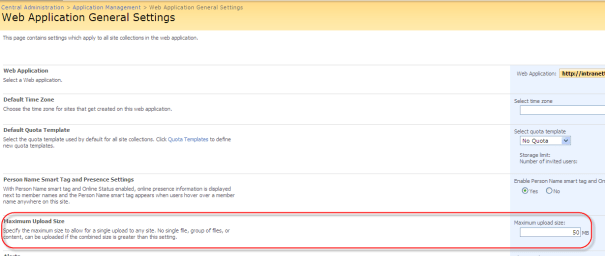
1. Give a upload file size limit under general setting of the web application in the central administration.

SPUploadSize

Upload size setting

2. Modify the metabase.xml file on the IIS server.

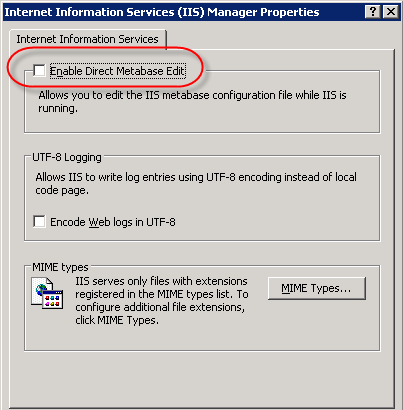
a. Before you can edit the metabase.xml file you must tell IIS to allow you to edit the file. In IIS, right click the name of the server and select properties. Check “Enable Direct Metabase Edit”.

IIS File Upload

IIS File Upload

b. Find the metabase.xml file located in C:\windows\sytem32\inetserv and open the file in Notepad.

c. Search for AspMaxRequestEntityAllowed and increase the value. The default value is 204800 (200K). Setting the value to 1000000 will allow 1 MB file uploads.

d. You may now wish to uncheck the IIS property called “Enable Direct Metabase Edit”.

To increase the file download size limit, repeat all steps above but in Step 3 find the parameter called AspBufferingLimit. The default download limit is 4MB.

Reference

http://stackoverflow.com

www.banmanpro.com

Tagged with:
Posted in SharePoint

Disable Loopback Check to resolve “Crawl Log error: Access Denied” error in SharePoint

Issue
Windows Server 2003 SP1 introduced a loopback security check. This feature is obviously also present in Windows Server 2008. The feature prevents access to a web application using a fully qualified domain name (FQDN) if an attempt to access it takes place from a machine that hosts that application. The end result is a 401.1 Access Denied from the web server and a logon failure in the event log.

The trouble is there are also scenarios where this fix will break normal operations of SharePoint.

1. Search Indexing.
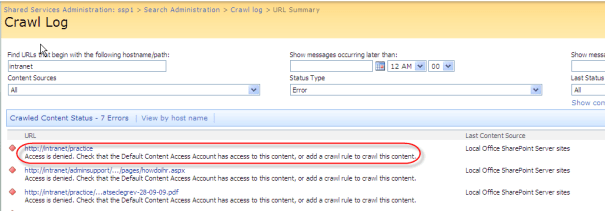
If you are hosting the WSS Web Application Service on your Indexer for the purposes of having a “Dedicated Crawl Front End” and avoiding a network hop. This is common in small scale “Medium Server Farms”. Because the Indexer is crawling itself, the crawl log will fill up with 401s and your content won’t get indexed.

Crawl Access Denied Error

Crawl Access Denied Error

2. Web Application “Warm Ups”.
If you are running a scheduled task or timer job to hit the Web Application to avoid the start up lag after an application pool recycle, the “warm up” will fail with a 401.

3. Custom Code using SharePoint Web Services.
If you have custom code, either in SharePoint or out with it that leverages SharePoint Web Services (such as using the ExcelService API) these requests will fail with a 401.

Workaround

If you are working on a development environment or on just a single MOSS box – go for it – disable it completely. You need to debug and test locally and it’s likely you don’t know what addresses you will use ahead of time. I as a matter of course disable the check as part of my sysprep build for all my development and test machines. I never hit the problem because my base image is all sorted as I want it. I recommend you do the same.

1. Login to the SharePoint server.
2. Click Start, click Run, type regedit, and then click OK.
3. In Registry Editor, locate and then click the following registry key:HKEY_LOCAL_MACHINE\SYSTEM\CurrentControlSet\Control\Lsa
4. Right-click Lsa, point to New, and then click DWORD Value.
5. Type DisableLoopbackCheck, and then press ENTER.
6. Right-click DisableLoopbackCheck, and then click Modify.
7. In the Value data box, type 1, and then click OK.
8. Quit Registry Editor, and then restart your computer.

However, for production environments, DO NOT DISABLE this feature. You are unpicking a serious security check of the OS. If that environment underwent a security audit by a competent security engineer, it would be flagged. You should add a list of addresses you wish to exclude. This makes your scenario work whilst retaining the security check.

1. Login to the SharePoint server.
2. Click Start, click Run, type regedit, and then click OK.
3. In Registry Editor, locate and then click the following registry key:HKEY_LOCAL_MACHINE\SYSTEM\CurrentControlSet\Control\Lsa\MSV1_0
4. Right-click MSV1_0, point to New, and then click Multi-String Value.
5. Type BackConnectionHostNames, and then press ENTER.
6. Right-click BackConnectionHostNames, and then click Modify.
7. In the Value data box, type the host name or the host names for the sites that are on the local computer, and then click OK.
8. Quit Registry Editor, and then restart the IISAdmin service.

References

Microsoft KB 896861

harbar.net

mossgurus.com

nishantrana.wordpress.com

social.technet.microsoft.com article I

social.technet.microsoft.com article II

Tagged with:
Posted in SharePoint