How to modify,remove or disable the buttons in aRTE HiSoftware editor?

1. Find defined.js file under the following location in the SharePoint server,
‘\Inetpub\wwwroot\wss\VirtualDirectories\80\ARTEeditor\editor\_source\internals\defined.js’

2. The default code in defined.js file is,

ARTEConfig.ToolbarSets[“Default”] = [
[‘Source’, ‘-‘, ‘Preview’, ‘-‘], // Removed Templates
[‘Cut’, ‘Copy’, ‘Paste’, ‘PasteWord’, ‘-‘, ‘Print’, ‘netSpellCheck’],
[‘Undo’, ‘Redo’, ‘-‘, ‘Find’, ‘Replace’, ‘-‘, ‘SelectAll’, ‘RemoveFormat’],
[‘Image’, ‘Table’, ‘Rule’, ‘Link’, ‘Unlink’, ‘Anchor’], // Thomas Removed SpecialChar Added Link Unlink Anchor
[‘Bold’, ‘Italic’, ‘Underline’, ‘StrikeThrough’, ‘-‘, ‘Subscript’, ‘Superscript’],
[‘OrderedList’, ‘UnorderedList’, ‘-‘, ‘Outdent’, ‘Indent’, ‘Blockquote’],
[‘JustifyLeft’, ‘JustifyCenter’, ‘JustifyRight’, ‘JustifyFull’],
//[‘Link’,’Unlink’,’Anchor’],
‘/’,
[‘Style’, ‘FontFormat’, ‘FontName’, ‘FontSize’]
// No comma for the last row.
] ;

aRTEdefault

3. Modify the default code with the code below,

ARTEConfig.ToolbarSets[“Default”] = [
[‘Preview’, ‘Cut’, ‘Copy’, ‘Paste’, ‘PasteWord’, ‘-‘, ‘Print’, ‘netSpellCheck’],
[‘Undo’, ‘Redo’, ‘-‘, ‘Find’, ‘Replace’, ‘-‘, ‘SelectAll’, ‘RemoveFormat’],
[‘JustifyLeft’, ‘JustifyCenter’, ‘JustifyRight’, ‘JustifyFull’],
[‘Image’,’Table’,’Link’,’Unlink’,’Anchor’], // Thomas Removed SpecialChar Added Link Unlink Anchor
[‘Bold’,’Italic’,’Underline’,’-‘,’Subscript’,’Superscript’],
[‘OrderedList’,’UnorderedList’,’-‘,’Outdent’,’Indent’,’Blockquote’],
‘/’,
[‘FontFormat’]
// No comma for the last row.

] ;
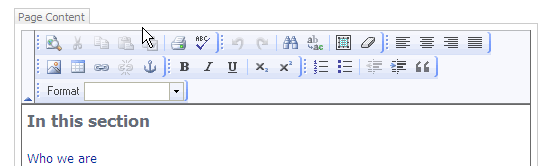
aRTEcustom

Tagged with:
Posted in SharePoint

SharePoint SiteCollection back script

1. Copy and paste the text below in a notepad and save as a bat file.
2. Setup Windows schedular to run the bat file overnight.
3. Check logs files under ‘C:\Program Files\Common Files\Microsoft Shared\web server extensions\12\LOGS’.
Note: The log file uses the ServerName-Date-Time.log format. Open and look for STSADM.EXE.

@echo off
echo ===============================================================
echo Backup Sharepoint Site Collection onto “D:\backup\SiteCollectionBackup.Dat”
echo ===============================================================
@echo off
::*****Change Directory to the 12 Hives*****
c:
cd C:\Program Files\Common Files\Microsoft Shared\web server extensions\12\BIN
::*****Limit access to the http://team.adsinfotech.com.au site collection during backup*****
stsadm.exe -o setsitelock -url http://team.adsinfotech.com.au -lock readonly
::*****Back up the http://team.adsinfotech.com.au site collection*****
stsadm.exe -o backup -url http://team.adsinfotech.com.au -filename \\SERVERNAME\D$\backup\SiteCollectionBackup.Dat -overwrite
::*****Back up the farm*****
stsadm.exe -o backup -directory “D:\backup\Farm” -backupmethod full
::*****Remove lock on Limit access to the http://team.adsinfotech.com.au site collection during backup*****
stsadm.exe -o setsitelock -url http://team.adsinfotech.com.au -lock none
echo completed

Tagged with:
Posted in SharePoint

How to give every user in the domain read access to the SharePoint Intranet

1. Login to the SharePoint Central Administration.

2. Go to ‘Shared Services Administration: ssp1’.

3. Click on ‘User Profile and Properties’.

4. Click on ‘View import connections’.

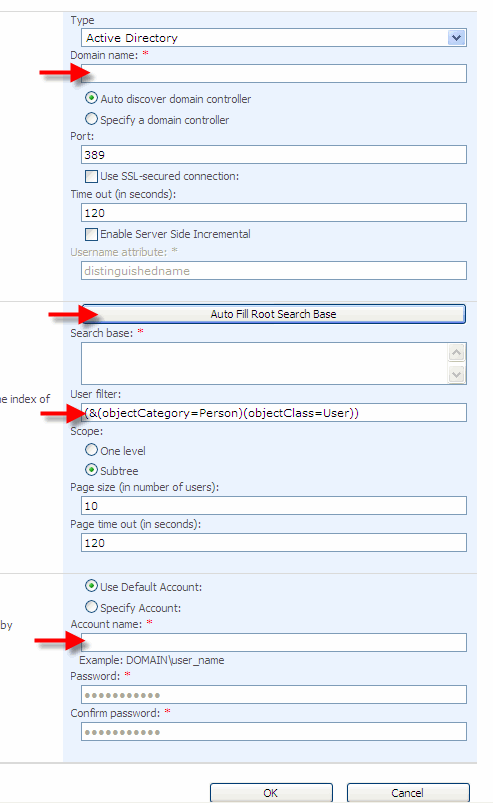
5. Click on ‘Create New Connection’ and you will see the screen below.
UserProfile

6. Select the ‘Type’. In my case it was Active Directory. Enter the domain name and click on the ‘Auto Fill Root Search Base’. The string ‘DC=yourdomain,DC=com,DC=au’ will appear in the ‘Search Base’ text. Oviously you will use your domain name instead on ‘yourdomain’. Modify this string if required to point to the particular OU where all users and groups live. For example, ‘OU=Users,OU=User & Groups,DC=yourdomain,DC=com,DC=au‘.

7. Under ‘User filter’ textbox the default string is
(&(objectCategory=person)(objectClass=user)( !(userAccountControl:1.2.840.113556.1.4.803:=2)))
Remove this string and add the string below,
(|(objectCategory=group)(&(objectCategory=person)(objectClass=user))( !(userAccountControl:1.2.840.113556.1.4.803:=2))).

8. Once all the groups are imported add the ‘Domain Users’ group into the ‘Visitor’ group in SharePoint. Now all users in the domain will have read access to the SharePoint Intranet.

Posted in SharePoint