Migrating Sharepoint website to a new web server and database manually

To migrate SharePoint website to a new web server and database server I have successfully managed two approach. In this article I have discussed doing the migration manually. To see my other post go to Migrating Sharepoint website to a new web server and database using script.

1. Install SharePoint on the new web server you want to migrate to.

2. Run the configuration wizard to connect it to the new SQL server. If you are connecting to the same SQL server delete (I would backup first) the Admin Content and ‘MOSS_Config’ databases. The configuration wizard will recreate these.

3. Install the same updates and services packs as on the original server. I did this with SP 2007 SP2. Make sure you run the configuration updates after the service packs.

4. Restore your website content databases and your two shared services databases (SharedServices1_DB and SharedServices1_Search_DB for example). In my case I had only three web applications. Portal, MySite, and SSPAdmin or 5 databases all together(MOSS_Config, MySite, SSP1, SSP1_Admin, SSP1_Search). Don’t worry about the search database. You will have to recrawl your website anyway. Make sure the database names are exactly the same as they were orginally.

5. Recreate your web applications. My case they were portal, mysite, sspadmin. When you create them this is your chance to change a URL or a port number or enter a host header. When you get to the database name, put in a fake name such as WSS_Portal_DeleteMe. You will delete this database later. Do this for all your webapplications.

6. Next step is to remove the temp database from each web application and attach the real database you restored in step 4. To do this go to Central Administration -> Application Management -> Content Databases. Select the web application you would like to change. Select the database name (for example WSS_Portal_DeleteMe). Check the box in the next screen to remove content database. You should now see no database attached to the web application (it also remove it off the sql server). Select add a content database. For the database name put the name in EXACTLY as you restored it which should be EXACTLY like it originally was. Don’t worry about the Search Server field since you have not started that service yet. Do this for all your web applications. You now have three new web applications attached to your 3 restored content databases.

7. Start required services on new server. Go to Central Administration -> Operations -> Services on Server. Start the Windows SharePoint and Office SharePoint searches. Let it create a new database.

8. Restore your SSP (these are the other two databases you restored earlier). Central Admin -> App Management -> Manage this farm’s shared services (Click in the Shared Services link on the left!). Select Restore SSP. Name the SSP (Can use the same name as before SharedServices1 or change it. I would leave it so it matches the DB name) Make sure you select your SSPadmin and MySite web applications your created earlier and your restored database names. Do I have to mention again to make sure the names are exact! Select the index server (it is now available since you started the service). You will get a warning stating you are changing the association of the existing web applications. Click OK.

9. Install any 3rd party web parts or custom ASPX pages before you try and open the site so it does not mess with any formatting. In my case I to reconfigure AKS Toolkit and aRTE on the server. Install IFilter for PDF icon. Migrate all web.config changes manually. For e.g default proxy settings.

10. Open your SSP website and user import and then start a full crawl. You should notice that all your SSP settings are still there.

11. Since you did not restore the Sharepoint_AdminContent database you will have recreate things like smtp server names. These are all easy things that can be found off the main Central Admin Page. You should even go through the steps they list and complete each one.
You should now have a fully functioning SharePoint site on a new server with a new sql server.

Reference

http://www.endusersharepoint.com/STP/topic/restore-an-entire-farm-in-to-a-new-set-up

Back up and restore SSPs (Office SharePoint Server 2007)

Back up and restore an entire farm (Office SharePoint Server 2007)

Back up and restore Web applications by using built-in tools (Office SharePoint Server 2007)
Restore: Stsadm operation (Office SharePoint Server)

www.tzunami.com

www.metalogix.net

Tagged with:
Posted in SharePoint

Migrating Sharepoint website to a new web server and database using script

To migrate SharePoint website to a new web server and database server I have successfully managed two approach. In this article I have discussed doing the migration using a script. To see my other post go to Migrating Sharepoint website to a new web server and database manually.

1. Install SharePoint on the new web server you want to migrate to.

2. Run the configuration wizard to connect it to the new SQL server. If you are connecting to the same SQL server delete (I would backup first) the Admin Content and ‘MOSS_Config’ databases. The configuration wizard will recreate these.

3. Install the same updates and services packs as on the original server. I did this with SP 2007 SP2. Make sure you run the configuration updates after the service packs.

4. Backup the web application using the following script on the SharePoint web server or the server from which you are trying to migrate. Make sure you login using and account which have admin access to the web server and the database. Copy and paste the text below into a notepad and save it as backup.bat file. If the website you are trying to migrate is running on the web server on port 80 then use http://OldServerName:80 or http://OldServerName. Obviously, you will use your server name instead.

@echo off
echo ===============================================================
echo Backup Web Application onto “D:\backup\SharePoint80.Dat”
echo ===============================================================
@echo off

::*****Change Directory to the 12 Hives*****
c:
cd C:\Program Files\Common Files\Microsoft Shared\web server extensions\12\BIN

::*****ReadOnly access to the http://OldServerName site collection during backup*****
stsadm.exe -o setsitelock -url http://OldServerName -lock readonly

::*****Back up the farm*****
:: REM stsadm.exe -o backup -directory “\\OldServerName\D$\backup\Farm” -backupmethod full

::*****Back up web application, ‘SharePoint – 80’ is the name of the backup website *****
stsadm.exe -o backup -directory “\\OldServerName\D$\backup\Farm” -backupmethod full -item “SharePoint – 80”

::*****Remove lock on Limit access to the http://OldServerName site collection during backup*****
stsadm.exe -o setsitelock -url http://OldServerName -lock none

echo completed

5. Restore your SSP (these are the other two databases you restored earlier). Central Admin -> App Management -> Manage this farm’s shared services (Click in the Shared Services link on the left!). Select Restore SSP. Name the SSP (Can use the same name as before SharedServices1 or change it. I would leave it so it matches the DB name) Make sure you select your SSPadmin and MySite web applications your created earlier and your restored database names. Do I have to mention again to make sure the names are exact! Select the index server (it is now available since you started the service). You will get a warning stating you are changing the association of the existing web applications. Click OK.

6. Copy the Farm folder created after backup (\\OldServerName\D$\backup\Farm) to the new web server (\\NewServerName\D$\backup\Farm).

7. Login to the new web server and open command prompt. Run “cd C:\Program Files\Common Files\Microsoft Shared\web server extensions\12\BIN”
and execute “stsadm.exe -o backuphistory -directory \\NewServerName\D$\backup\Farm”. This will give you a backup history ID.

8. Restore the web application using the following script on the new SharePoint web server or the server to which you are trying to migrate. Make sure you login using and account which have admin access to the web server and the database. Copy and paste the text below into a notepad and save it as restore.bat file. Delete any web application with same name it exist using “stsadm.exe –o deletesite –url http://NewServerName”. Use the backupid you got from step 7 while restoring.

@echo off
echo ===============================================================
echo Restore Sharepoint Site Collection from file “D:\backup\restore.dat”
echo ===============================================================
@echo off

:: REM *****Change Directory to the 12 Hives*****
c:
cd C:\Program Files\Common Files\Microsoft Shared\web server extensions\12\BIN

:: REM *****Limit access to the http://NewServerName site collection during backup*****
stsadm.exe -o setsitelock -url http://NewServerName -lock readonly

:: REM *****Restore the http://NewServerName site collection, ‘SharePoint – 80’ is the name of the restore website *****
stsadm.exe -o restore -directory \\NewServerName\D$\backup\Farm -backupid db2a5773-627a-4687-8b2f-dd12f152c5da -item “SharePoint – 80” -restoremethod new -newdatabaseserver “NewDatabaseServer”.

:: REM *****Remove lock on Limit access to the http://NewServerName site collection during backup*****
stsadm.exe -o setsitelock -url http://NewServerName -lock none

echo completed

9. Install any 3rd party web parts or custom ASPX pages before you try and open the site so it does not mess with any formatting. In my case I to reconfigure AKS Toolkit and aRTE on the server. Install IFilter for PDF icon. Migrate all web.config changes manually. For e.g default proxy settings.

10. Open your SSP website and user import and then start a full crawl. You should notice that all your SSP settings are still there.

11. Since you did not restore the Sharepoint_AdminContent database you will have recreate things like smtp server names. These are all easy things that can be found off the main Central Admin Page. You should even go through the steps they list and complete each one.
You should now have a fully functioning SharePoint site on a new server with a new sql server.

Reference

http://www.endusersharepoint.com/STP/topic/restore-an-entire-farm-in-to-a-new-set-up

Back up and restore SSPs (Office SharePoint Server 2007)

Back up and restore an entire farm (Office SharePoint Server 2007)

Back up and restore Web applications by using built-in tools (Office SharePoint Server 2007)
Restore: Stsadm operation (Office SharePoint Server)

www.tzunami.com

www.metalogix.net

Tagged with:
Posted in SharePoint

How to put a link back to the main site from SharePoint MySite?

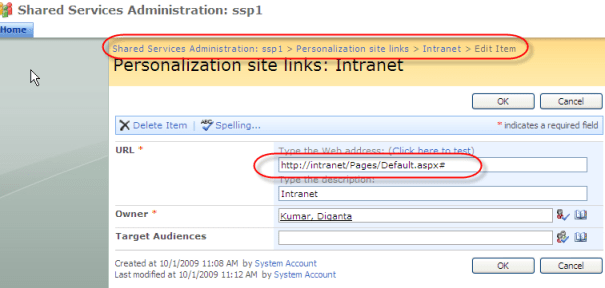
1. Go to SharePoint Central Administration > ssp1 > Personalization site links.
2. Add an new link. Make sure you add a # on the end of the URL you enter, this makes the rest of the link an anchor so SP will ignore it and display your normal menu. If yo do not add # then when you click and return to your Portal, the menu has retained the MySite navigation because the URL contains “?MySiteView=1”.

Personalization Site Links Screen

Personalization Site Links Screen

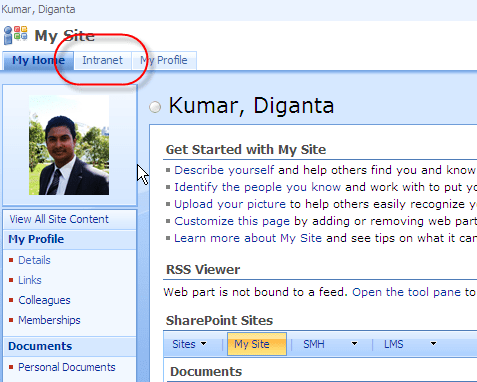
3. After add the new link it appears on MySite as shown below,

My Site Portal Link

My Site Portal Link

Tagged with: ,
Posted in SharePoint