Employee Lookup or User Profile searches in SharePoint 2007

Want to allow users to search / lookup employees through the Active Directory? The Employee Lookup webpart, for a SharePoint 2007 publishing portal, does not work right out of the box – as it needs to be configured. As I continue learning and start sharing my experiences with the SharePoint community, I thought I’d share my notes on how to get the Employee Lookup Web Part working.

What is the Employee Lookup Web Part?
The Employee Lookup Web Part allows you to search your company’s active directory for contact information. Advanced search fields that are provided are First and Last Name, Department, Title, Responsbilities, Skills and Memeberships. Instructions for creating a new connection and applying an LDAP user filter to limit the profiles imported by your Shared Service Provider:

1. Log in to your SharePoint Central Administration site.

2. Select your Shared Service Provider and click on “User profiles and properties” under the “User Profiles and My Sites” column.

3. Click on the link, “Manage Connections”.

4. Click on “Create New Connection”.

5. Give the connection a meaningful name.

6. In the Add Connection screen, input the following properties:
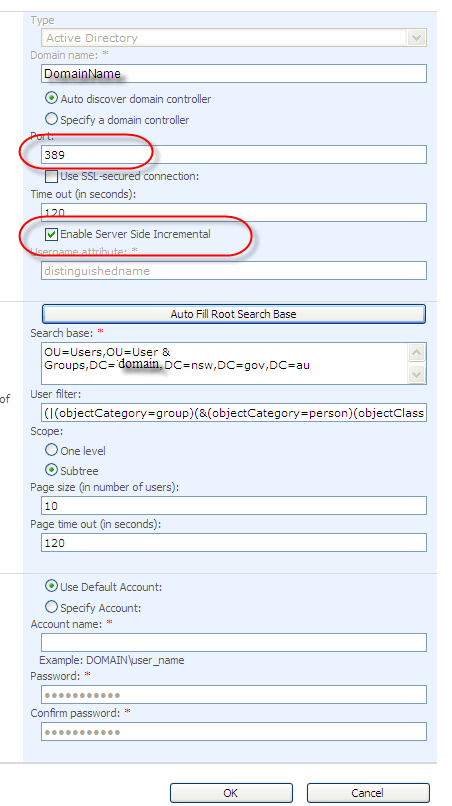
Import User Profile Connection Settings

Import User Profile Connection Settings

Connection Settings
Type: Active Directory
Domain Name:Select Auto discover domain controller or Specify a domain controller (pick from drop down list)
Port: 389
Time out (in seconds): 120
Select Enable Server Side Incremental so that you can increase user profile import efficiency
Search Settings
Click on Auto Fill Root Search Base or specify yourself in the Search base
User Filter: use this to specify which profiles are imported by using LDAP query
Scope Level: are the user profiles imported only from the first level of the subtree or from the entire subtree?
Page size: limit the amount of data that is imported for each page
Page time out: limit the amount of time spent attempting to access a server that is not responding
Authentication Information
Specify the credentials with which you want to connect to the directory service. Create a service domain account with read only access to Active Directory.

Before we configure the user profile import, the data connection has to be defined. You should consider using a Active Directory or LDAP browsing utility.
I have used Softerra’s LDAP Browser

7. Enter the LDAP user filter of your choice (see below for examples) .

8. Now you are ready to import your LDAP users into the profile database. Go back a screen and start a full import. From here you can keep refreshing the screen to see the progress. This takes approx. 1 min per 100 user profiles (depending on your server). Once the import starts enumerating you should see user profiles being imported into SharePoint. When the import is complete, click “View Profiles” to see what profiles were imported. Also view the Import Log and filter to see if there were any errors.

User Filter

Default user filter:
(&(objectCategory=Person)(objectClass=User))

Import groups and exclude disable accounts with no lastname, firstname, email address:
(|(objectCategory=group)(&(objectCategory=Person)(objectClass=User)(!(userAccountControl:1.2.840.113556.1.4.803:=2))(sn=*)(givenName=*)(mail=*)))

Exclude accounts with no email address:
(&(objectCategory=Person)(objectClass=User)(!(userAccountControl:1.2.840.113556.1.4.803:=2))(mail=*))

Exclude disabled accounts:
(&(objectCategory=person)(objectClass=user)(!userAccountControl:1.2.840.113556.1.4.803:=2))

Exclude accounts with passwords set to expire:
(&(objectCategory=person)(objectClass=user)(!userAccountControl=65536))

Include only the accounts with valid email addresses
(&(objectCategory=Person)(objectClass=User)(mail=*com)

Include only the accounts that are part of the Branch1 organizational unit
(&(objectCategory=Person)(objectClass=User)(memberof:1.2.840.113556.1.4.1941:=(CN=Authenticated Users,OU=Branch1,DC=domain,DC=local)))

Exclude accounts that don’t have a first name
(&(objectCategory=Person)(objectClass=User)(!(userAccountControl:1.2.840.113556.1.4.803:=2))(!(!givenName=*)))

You have just uploaded the user profiles from your Active Directory and have setup Incremental Import Schedule for incremental updates to your Active Directory. Now its time to include the user profiles that you have imported into your content sources. We will now configure the Employee Lookup Web Part which allows you the ability to search against user profiles that you import from the Active Directory. Its not a process that is real time but does allow you to setup import schedules for incremental changes.

9. Enabling the Employee Lookup Web Part Search which allows you the ability to search against user profiles that you import from the Active Directory.

10. Go to Shared Services Administration for your SSP.

11. Under Search section click on Search settings.

12. On Configure Search Settings page click on ‘Content sources and crawl schedules’.

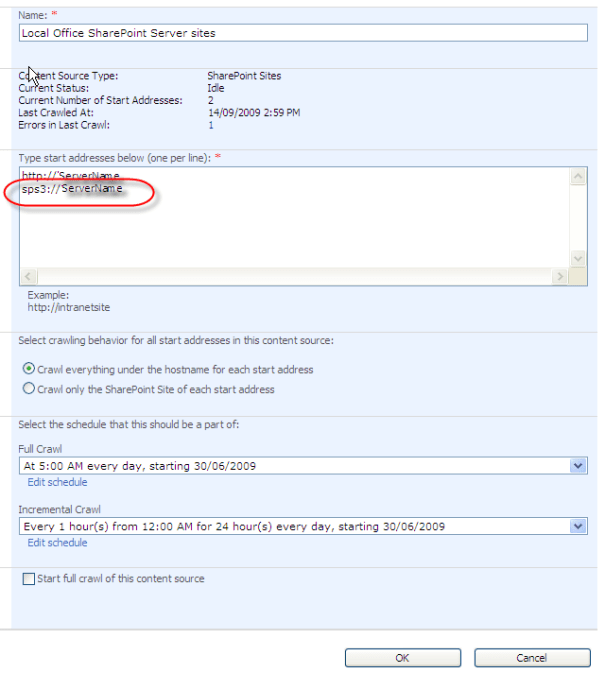
13. On the ‘Manage Content Sources’ page, click the arrow to pull up the context sensitive menu next to ‘Local Office SharePoint Server sites’.

14. In the drop menu click Edit and make sure you have added SPS3 protocol under ‘Start Addresses’. For more information on SPS3 check my blog ‘SharePoint and SPS3, SPS3S, STS3, STS3S, BDC, BDC2, File, RB, RBS, Notes Protocols

Content Search Connection Settings

Content Search Connection Settings

14. In the drop menu click Start Full Crawl. Verify that crawl started (status changed to Full Crawl) and wait until crawl has completed (status should change to Idle)

Well that its, the user profiles are now searchable. The user profiles that you imported should now be a part of the search index. Searching for any name, or other data, will bring up results for those that exist. What you might notice is that many of the properties are not included and only the name and the email addresses were imported.

Reference

http://www.sharepointbuzz.com/archive/2007/03/08/how-to-configure-employee-lookup-web-part-part-1.aspx

http://www.sharepointbuzz.com/archive/2007/03/09/how-to-configure-employee-lookup-web-part-series-part-2.aspx

http://sharepointsherpa.com/2008/03/14/sharepoint-2007-ldap-user-filters-for-limiting-user-profile-import/

Softerra’s LDAP Browser

Tagged with:
Posted in SharePoint

SharePoint and SPS3, SPS3S, STS3, STS3S, BDC, BDC2, File, RB, RBS, Notes Protocols

The SPS3 Protocol

The SPS3 protocol is used for crawling people profiles (e.g., those defined in the SSP) to support the “People Search” functionality in the MOSS Enterprise Search.
This protocol is used to index WSS 3.0 server farms (which MOSS 2007 is layered on top of )

“People Profiles” are at the SSP level:

This profile spans multiple Site Collections (all those web applications/site collections within the SSP)
The “My Site” commonly exposes the ability for people to edit their own information through the “My Profile” tab
Note that the WSS profile is not the same as the SSP profile information
The WSS profile information is the information that you can edit from the

The SPS3 protocol commonly shows up when you define the content sources for the SSP

Some examples:
sps3://mysite.yourdomain.com/
sps3://www.yourdomain.com/mysite/
sps3://my.yourdomain.com/

Note, that if you are using SSL on your My Site host headers, the SPS3 protocol should not be used, and you should change your content source to use the SPS3S protocol instead.

The protocol handlers (that ship out-of-the-box with MOSS 2007) translate the content source url from sps3:// into a web service call sps3://mysite.yourdomain.com is actually crawled on the web front end by the indexer using a SOAP call to the web service http://mysite.yourdomain.com/_vti_bin/spscrawl.asmx ( the SPS3 SOAP call is made using HTTP protocol on TCP Port 56737 )

The SPS3S Protocol

The SPS3S protocol is used when you have enabled SSL for the My Sites, and is used for crawling people profiles (e.g., those defined in the SSP) to support the “People Search” functionality in the MOSS Enterprise Search. This protocol is used to index WSS 3.0 server farms using SSL (which MOSS 2007 is layered on top of )

Some examples:
sps3s://www.yourdomain.com/
sps3s://www.yourdomain.com/mysite/
sps3s://my.yourdomain.com/

The protocol handlers (that ship out-of-the-box with MOSS 2007) translate the content source url from sps3s:// into a web service call sps3s://mysite.yourdomain.com is actually crawled on the web front end by the indexer using a SOAP call to the web service https://mysite.yourdomain.com/_vti_bin/spscrawl.asmx ( the SPS3S SOAP call is made using HTTP protocol on TCP Port 56738 with SSL encryption )

The STS3 Protocol

The STS3 protocol is used for crawling SharePoint content without having to have URL links that lead to every possible content item in the web site. This protocol is used to index WSS 3.0 server farms (which MOSS 2007 is layered on top of ) STS3 protocol achieves this by using the Site Data Web service to determine all the content in your SharePoint site.

Some examples:
sts3://www.yourdomain.com/
sts3://www.yourdomain.com/teamsites/
sts3://portal.yourdomain.com/

The protocol handlers (that ship out-of-the-box with MOSS 2007) translate the content source url from sts3:// into a web service call sts3://www.yourdomain.com is actually crawled on the web front end by using the web service http://mysite.yourdomain.com/_vti_bin/sitedata.asmx ( the STS3 SOAP call is made using HTTP protocol on TCP Port 56737 )

Note, that if you are using SSL on your Site host headers, and you do not expose the pages through non-SSL URLs, the STS3 protocol should not be used, and you should change your content source to use the STS3S protocol instead.

The STS3S Protocol

The STS3S protocol is used for crawling SharePoint content that is exposed using SSL, without having to have URL links that lead to every possible content item in the web site. This protocol is used to index WSS 3.0 server farms using SSL (which MOSS 2007 is layered on top of ) STS3S protocol achieves this by using the Site Data Web service to determine all the content in your SharePoint site.

Some examples:
sts3s://www.yourdomain.com/
sts3s://www.yourdomain.com/teamsites/
sts3s://portal.yourdomain.com/

The protocol handlers (that ship out-of-the-box with MOSS 2007) translate the content source url from sts3s:// into a web service call sts3s://www.yourdomain.com is actually crawled on the web front end by the indexer using a SOAP call to the web service https://mysite.yourdomain.com/_vti_bin/spscrawl.asmx ( the STS3S SOAP call is made using HTTP protocol on TCP Port 56738 with SSL encryption )

Other protocols such as the following are also explained in the Microsoft Press book mentioned above:

BDC protocol BDC:// Used for Business Data Catalog URLs{ available only in the Enterprise edition of MOSS 2007 }

BDC2 protocol BDC2:// Used for Business Data Catalog URLs (an internal protocol){ available only in the Enterprise edition of MOSS 2007 }

File protocol File:// Used to index file shares

RB protocol RB:// Used to index Exchange Server public folders

RBS protocol RBS:// Used to index Exchange Server public folders over SSL

SPS protocol SPS:// Used to index people profiles from WSS 2.0 server farms

SPSS protocol SPSS:// Used to index people profiles from WSS 2.0 server farms over SSL

STS2 protocol STS2:// Used to index SharePoint content from WSS 2.0 sites

STS2S protocol STS2S:// Used to index SharePoint content from WSS 2.0 sites over SSL

Notes protocol NOTES:// Used to index Lotus Notes databases, and include this content in the MOSS Enterprise Search indexes

Reference

http://social.technet.microsoft.com/Forums/en-US/sharepointsearch/thread/2b760f44-3eed-4ab0-96fb-fdccffe0cfdd

Recommended book:

Inside the Index and Search Enginges: Microsoft Office SharePoint Server 2007
Partick Tisseghem and Lars Fastrup
Microsoft Press
ISBN-13: 978-0-7356-2535-8
ISBN-10: 0-7356-2535-2

Chapter 9 Advanced Search Engine Topics (pages 526 to 527) in the Microsoft Press Book:
Inside the Index and Search Enginges: Microsoft Office SharePoint Server 2007
Partick Tisseghem and Lars Fastrup
Microsoft Press
ISBN-13: 978-0-7356-2535-8
ISBN-10: 0-7356-2535-2

Tagged with:
Posted in SharePoint

Open “I Need To” sharepoint web part issues and open links in a new window

Issue:
If you add two “I Need To” sharepoint web part on the same page the webpart on the top works fine, but the webpart on the bottom does nothing.

Solution:
1.Export the first webparts.

SPExportWebpart

Export WebPart

2. Modify the XSLT in the webpart. Give a new ID (e.g id=”TasksAndToolsDDIDBusinessTools”). Add a placeholder for href (e.g href=”#”). Add a onclick JavaScript event (e.g onclick=”javascript:LABusinessTools_jumpMenu();).

SPExportWebpartXSLT

Webpart's exported XSLT

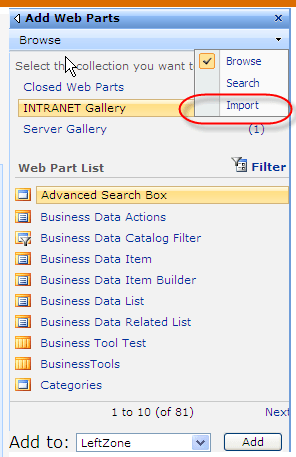
3. Import the webpart. Edit the page. Click on ‘Add a Web part’. Click on ‘Advanced Web Part Gallery and Options’ on the add web part. Then import as show in the image below.

Import WebPart

Import WebPart

4. Find the portal.js on the SharePoint web server under “C:\Program Files\Common Files\Microsoft Shared\web server extensions\12\TEMPLATE\LAYOUTS” and add
the JavaScript below. Make sure the ID you put in the XSLT is same as the ID use under document.getElementById().

function LAInternetLinks_jumpMenu() {
var el = document.getElementById(“TasksAndToolsDDIDInternetLinks”);
if (el != null)
{
var href = window.open(el.options[el.selectedIndex].value);
if (href != "0")
{
window.open(href);
}
}
}

5. Do step 1 to 4 for the second web part. The ID and the JavaScript name should be different.

Reference:
http://social.technet.microsoft.com/


Email

Tagged with:
Posted in SharePoint