How to check whether the application is single sign on or form authentication from C# code?

Suppose you have a C# web application which need to run on a internal (inside network) and external (DMZ) web servers. These two application talks to the same database. The internal application need single sign on (SSO) and the external application is form authentication. Now in Visual studio you have one project for both these applications. Depending on the web.config’s configurations the application either do SSO or form authentication.

For SSO the web.config settings are,
<authentication mode="Windows"></authentication>

For form the web.config settings are,
<authentication mode="Forms">
<forms name="LegalAidLogin" loginUrl="~/login.aspx" defaultUrl="~/default.aspx" timeout="30" protection="All" enableCrossAppRedirects="true">
</forms>
</authentication>

Now, when you in login page which you have to need to check the authentication mode on page load, use the code below,

// Load web.config
System.Xml.XmlDocument config = new System.Xml.XmlDocument();
config.Load(AppDomain.CurrentDomain.SetupInformation.ConfigurationFile);
System.Xml.XmlNode node = config.SelectSingleNode(”//configuration/system.web/authentication”);

// Check the login mode for forgot your password
if (node.Attributes[“mode”].Value == “Forms”)
{}

If you are already login in and you need to check the authentication mode use code below,

if (HttpContext.Current.User.Identity.AuthenticationType != “Forms”)
{}
Posted in C#

Visual Studio 2010 Could not load file or assembly

Visual Studio build error: :
Error 15 Could not load file or assembly 'file:///C:\Documents and Settings\kumard\My Documents\Visual Studio 2010\Projects\LANSW.LMS\site\References\SwitchIT.DataAccess.dll' or one of its dependencies. Operation is not supported. (Exception from HRESULT: 0x80131515)

Solution:

  • Right click on each *.dll file in Windows Explorer.
  • Uncheck “Read Only”.
  • Click “Unblock”.

If dll are stored in a network drive, move them locally and re-add your references.

Tagged with:
Posted in C#, Visual Studio

Enable Web Services Enhancements (WSE) 3.0 in Visual Studio 2012, 2010 and 2008

Web Service Enhancements 3 (WSE 3) is not officially supported since Visual Studio 2008. The reason is that Microsoft wants you to migrate your code to WCF. See below to enable Web Services Enhancements (WSE) 3.0 in VS2012, VS2010 and VS2008.

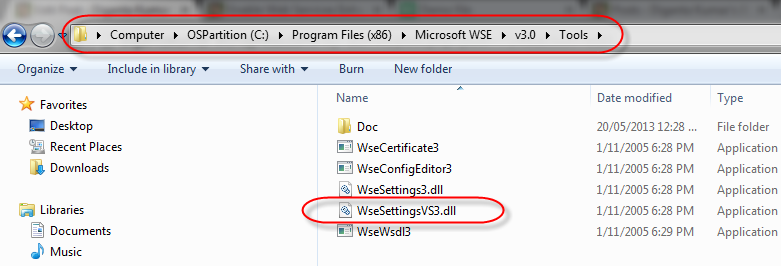
1. Download and install Web Services Enhancements (WSE) 3.0 for Microsoft .NET. Make sure you have all the files after installing WSE v3.0. In Window 7 the location is “C:\Program Files (x86)\Microsoft WSE\v3.0\Tools”. Note: Close Visual Studio before installing.

WSE 3.0 DLL on Window 7

WSE 3.0 DLL on Window 7

WSE 3.0 DLL on Window XP

WSE 3.0 DLL on Window XP

2. Go to the folder %ALLUSERSPROFILE%\Application Data\Microsoft\MSEnvShared\AddIns (notice that “Application Data” is hardcoded, which shouldn’t because Windows XP localizes that folder). If the folder is not there close Visual Studio and create the folder as show below.

Examples:
– Windows XP: “C:\Documents and Settings\All Users\Application Data\Microsoft\MSEnvShared\AddIns”
– Windows Vista / Windows 7: “C:\ProgramData\Microsoft\MSEnvShared\AddIns”. ( This is a hidden folder. Copy paste the UNC path to Windows Explorer.)

3. In the folder in step 2 you will find WSESettingsVS3.AddIn file. Backup WSESettingsVS3.AddIn before modifying. If its not there then create one with the file name WSESettingsVS3.Addin and type the content from the picture shown in step 4.

4. You’ll find two sections. Note that the version is 8.0. Copy and paste these two sections and change the version of the new sections to 9.0 (if using Visual Studio 2008) or 10.0 (if using Visual Studio 2010) or 11.0 (if using Visual Studio 2012). Save the file.

VS2012 WSE3.0 WSESettingsVS3.AddIn file

VS2012 WSE3.0 WSESettingsVS3.AddIn file

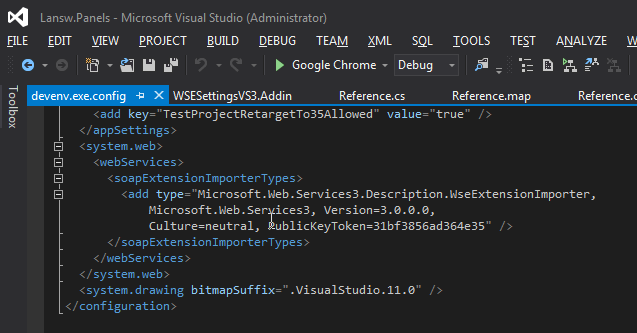
5. Go to C:\Program Files (x86)\Microsoft Visual Studio 11.0\Common7\IDE (if using VS2012) or C:\Program Files\Microsoft Visual Studio 9.0\Common7\IDE (if using VS2008) or C:\Program Files\Microsoft Visual Studio 10.0\Common7\IDE (if using VS 2010) and open the devenv.exe.config file. Backup the devenv.exe.config file and add the following snippet just above the closing tag inside the file. This helps Visual Studio to generate web service proxy classes using WSE.

Visual Studio Devenv.exe.config file

Visual Studio Devenv.exe. config file

<system.web>
  <webServices>
    <soapExtensionImporterTypes>
      <add type="Microsoft.Web.Services3.Description.WseExtensionImporter,
       Microsoft.Web.Services3, Version=3.0.0.0,
       Culture=neutral, PublicKeyToken=31bf3856ad364e35" />
    </soapExtensionImporterTypes>
  </webServices>
</system.web>

7. Close all the instances of Visual Studio and start the application again.

8. Open your project in Visual Studio and right click on project to see the WSE Setting 3.0 option. Now you could configure WSE setting in Visual Studio. Good luck.

WSE Setting 3.0 on VS2012 menu

WSE Setting 3.0 on VS2012 menu

WSE Setting 3.0 under VS2010 project

WSE Setting 3.0 under VS2010 project

Reference:

Default .AddIn file locations for Visual Studio add-ins
How to use WSE 3 in Visual Studio 2008
Migrating WSE 3.0 Web Services to WCF
WSE 3.0 Setting Tool For Visual Studio 2008
How to use WSE 3 in Visual Studio 2008
How to use WSE 3 in Visual Studio 2010

Tagged with: ,
Posted in ASP.NET, C#, Visual Studio