SharePoint 2007 Accessibility

http://www.21apps.com/sharepoint/sharepoint-accessibility-is-moss-2007-accessible/

Tools
1. Install FireFox and the following addons
HTML Validator – https://addons.mozilla.org/en-US/firefox/addon/249
CSS Validator – https://addons.mozilla.org/en-US/firefox/addon/2289
Web Accessibility Tester – https://addons.mozilla.org/en-US/firefox/search?q=taw3&cat=all

What Doctype to use?
http://www.sharepointblogs.com/tmt/archive/2008/01/22/which-doctype-to-use-with-sharepoint-2007.aspx
http://www.w3.org/QA/2002/04/valid-dtd-list.html

MOSS Accessibility Kit
https://aks.hisoftware.com/default.aspx

Accessibility Whitepapers
http://go.microsoft.com/fwlink/?LinkId=121877
Also register and download AKS whitepaper from https://aks.hisoftware.com/Resources/Lists/WhitePapers/AllItems.aspx

White paper for Delivering Accessible Solutions using
Microsoft Office SharePoint Server 2007

Reference site:
http://www.heathersolomon.com/blog/articles/BaseMasterPages.aspx

Site done using Div
http://www.worleyparsons.com/AboutUs/Pages/default.aspx
Posted in SharePoint

How to add different PublishingWebControls:RichHtmlField in the same page layout?

1. Find the ‘content type name’ of the page layout.

2. In the browser, do one of the following:
– From any team site, on the Site Actions menu, click Site Settings.
– From any portal area, click Site Actions, point to Site Settings, and then click Modify All Site Settings.

3. On the Site Settings page, under Site Collection Administration, click Go to top level site settings.
– Alternatively, you can browse directly to http://your_top_level_site/_layouts/settings.aspx, where your_top_level_site is
– the URL for your root site, such as fabrikamweb for the http://fabrikamweb site.
– To see list of fields available http://your_site/_layouts/mngfield.aspx

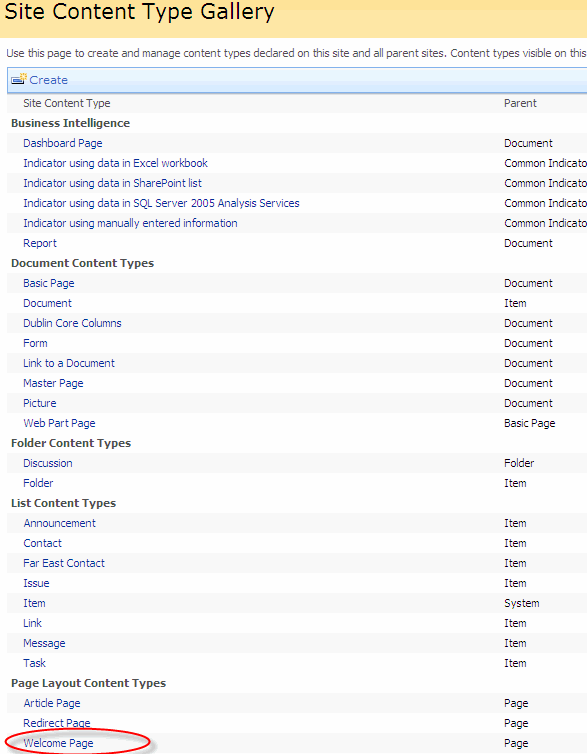
4. Under Galleries, click Site content types.

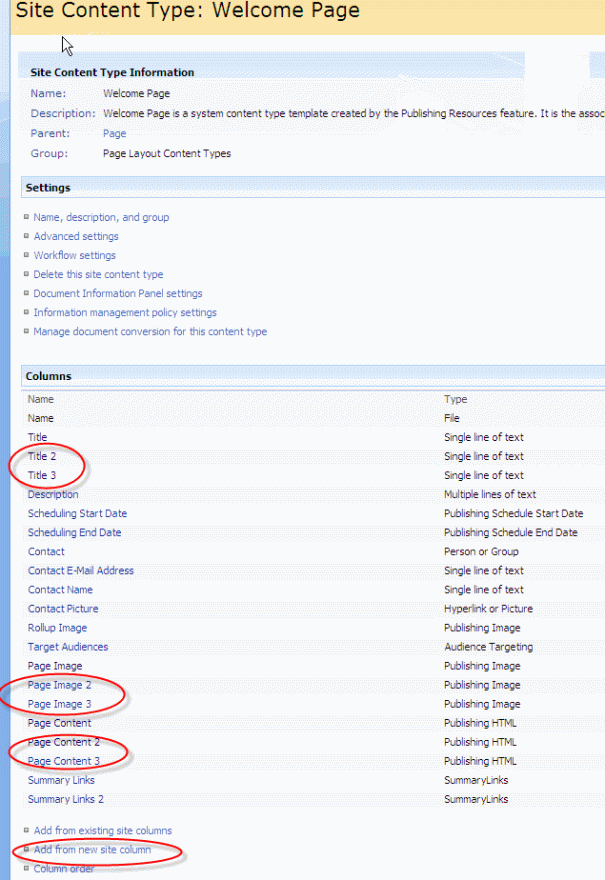
5. Click on the ‘content type’ you want to add extra fields.

SiteContentTypeGallery

SiteContentTypeGallery

6. Click ‘Add from new site column’ link on botton and add as many extra column with Type ‘Publishing HTML’ as required.

ContentTypeWelcomePage

ContentTypeWelcomePage


7. When prompt to select a group select ‘Page Layout Columns’. To make your new content type available for page layouts that you create or customize in Office SharePoint Designer 2007, put the content type in the Page Layout Content Types group, where it will be easy to locate.

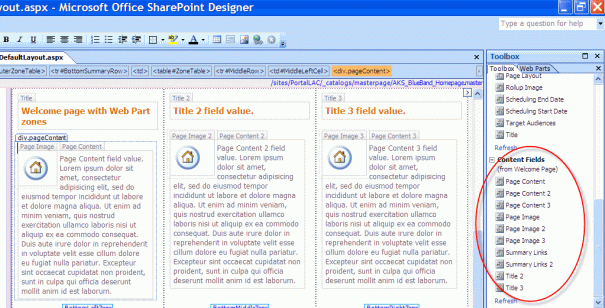
8. Go to SP Designer and then refresh link under ‘Content Field’ under Toolbox tab on right.

SharePoint Designer Content Field

SharePoint Designer Content Field

9. Now you can drag and drop the new ‘Content Fields’ in your page layout.

Reference:
http://office.microsoft.com/en-us/sharepointdesigner/HA101741281033.aspx#3

Posted in SharePoint

How to resolve “Access Denies” issue when tried to install AKS features in MOSS server

1. Register and download Accessibility Kit for SharePoint (AKS) from https://aks.hisoftware.com/downloads/default.aspx.

2. Double click ‘AKSInstaller2.exe’ on the server.

3. The AKS Feature installs the Example Master pages and the Modified CSS. You must install this by selecting Install AKS Feature from the Start Menu: Start | All Programs | AKS by HiSoftware | AKS Feature install. Once the feature is installed, you will still need to activate it within your SharePoint application through: Site Settings | Site Collection Features. Please note if you are on a 64 Bit server please follow the 64 Bit instructions.

4. The ‘AKS Feature install’ did not work because the installer try to run the ‘install_AKSFEAT.bat’ file which is on the d drive and the installer is looking for ‘C:\Program Files\Common Files\Microsoft Shared\web server extensions\12\TEMPLATE\FEATURES\AKS’. Run the command manually.

5. Login to the Windows 2003 R2 MOSS web server with an account is in the Administrator, WSS_ADMIN_WPG , WSS_RESTRICTED_WPG, IIS_WPG and WSS_WPG groups of the MOSS web server. And is also the Primary Site Collection Administrator in Central Administration. Also that account need write access to ‘MOSS_Config’ database.

6. Run
cmd >
cd c:\Program Files\Common Files\Microsoft Shared\Web Server Extensions\12\bin\
stsadm.exe -o installfeature -name AKS -force

7. Once the feature is installed successfully, you will still need to activate it within your SharePoint application through: Site Settings | Site Collection Features.

8. On MOSS site go to Site Setting > Look and Feel > MasterPage.

9. Select the AKS_BlueBand.master, reset all subsites and select ‘/sites/PortalLAC/Style Library/AKS/Aks_Band_Blueband.css’ under Alternate CSS URL.

Note: For Windows 2008 server disabled User Account Control under User Accounts. There is another way to get around this without actually disabling User Account Control. Please run stsadm.exe as an administrator and you should be able to execute stsadm. You can also go into the properties of stsadm.exe and set it to run as an administrator.

Posted in SharePoint